Build an HTTP Status Tester in 5 Minutes
If you have ever needed to test how your app handles a 502 from an upstream service, or verify that your error-handling middleware does the right thing with a 422, you know the drill. You either spin up a quick Express server, use some third-party mock service, or hardcode a fake response and hope you remember to remove it later.
This tutorial walks through building a webhook endpoint in QuickFlo that returns whatever HTTP status code you ask for. Hit it with ?status=404 and you get a 404. Hit it with ?status=200 and you get a 200. It takes about five minutes and zero code.
What we are building
A live HTTP endpoint that accepts a status query parameter (or JSON body field) and responds with that exact status code, along with a JSON body confirming what was returned. You can use it to:
- Test how your frontend handles different API error codes
- Verify webhook retry logic in third-party integrations
- Simulate failures during end-to-end tests
- Check that your monitoring and alerting fires on 5xx responses
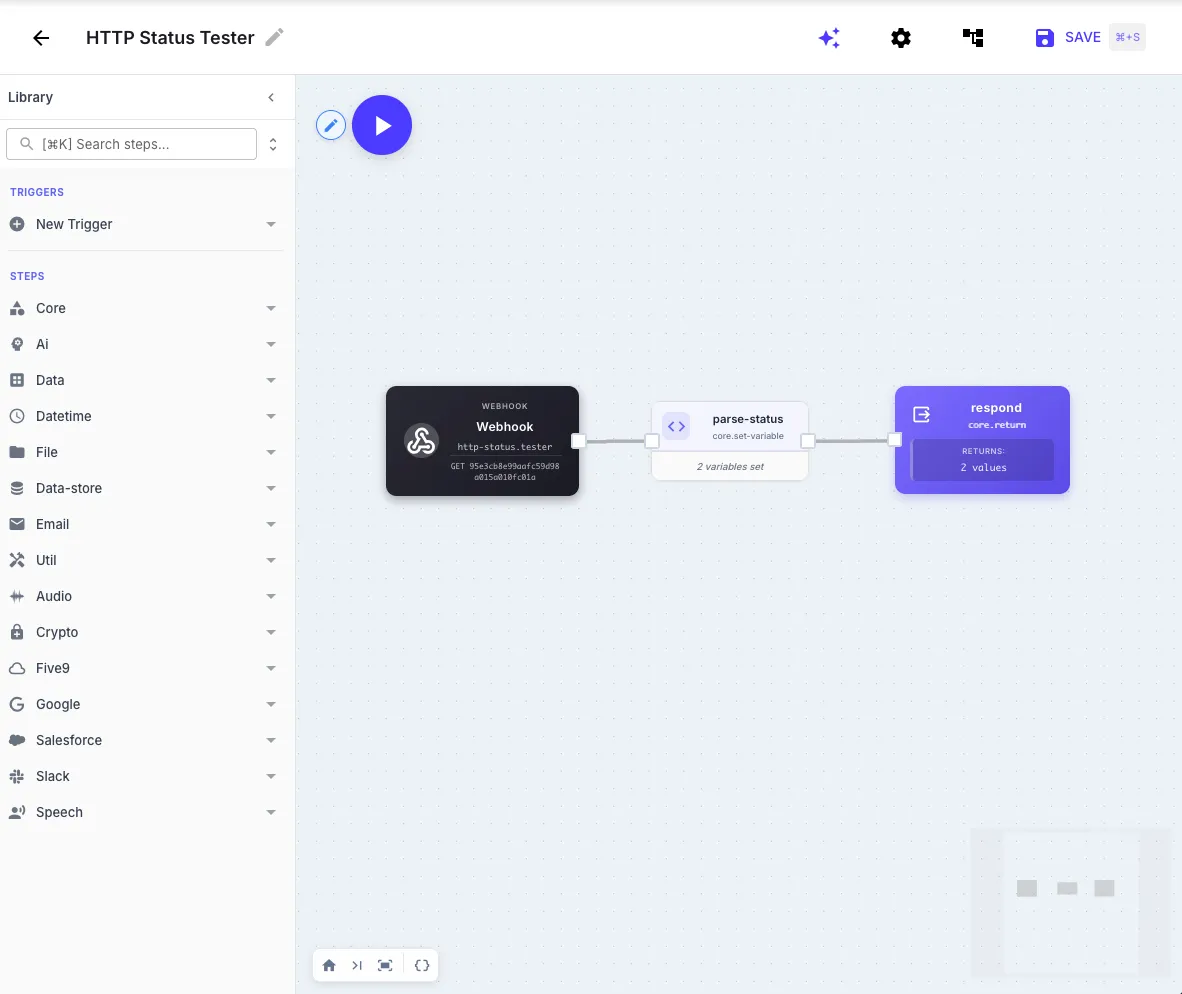
The workflow has two steps: one to parse the requested status code, and one to send the response.
The workflow definition
Here is the full workflow JSON. Copy it, then paste it onto the QuickFlo workflow canvas with Cmd+V (or Ctrl+V on Windows). QuickFlo will create the entire workflow for you automatically.
{
"name": "HTTP Status Tester",
"steps": [
  {
    "stepId": "parse-status",
    "stepType": "core.set-variable",
    "input": {
      "value": "{{ initial.webhook.query.status | toInt | default: 200 }}"
    }
  },
  {
    "stepId": "respond",
    "stepType": "core.return",
    "input": {
      "status": "{{ $vars.value }}",
      "body": {
        "requestedStatus": "{{ $vars.value }}",
        "message": "HTTP status {{ $vars.value }} returned as requested",
        "timestamp": "{{ 'now' | date: '%Y-%m-%dT%H:%M:%SZ' }}"
      }
    }
  }
]
}
Clipboard import
The clipboard import feature works on any QuickFlo workflow canvas. Copy valid workflow JSON to your clipboard, navigate to the canvas, and paste. QuickFlo parses the JSON and creates the steps, connections, and configuration for you.
Step-by-step walkthrough
Let’s walk through what each piece does.
The webhook trigger
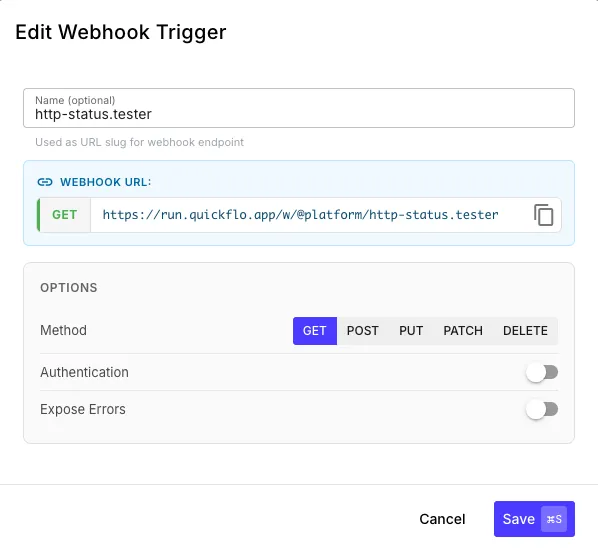
When you create a workflow in QuickFlo, it automatically gets a webhook trigger — a unique URL that you can send HTTP requests to. JSON body properties are parsed and available directly as initial.propertyName. Query parameters land in initial.webhook.query, and headers in initial.webhook.headers. So when someone hits your webhook URL with ?status=404, that value is accessible as initial.webhook.query.status inside the workflow.
You do not need to configure anything for this. It just works out of the box.
Step 1: parse-status (Set Variable)
{
  "stepId": "parse-status",
  "stepType": "core.set-variable",
  "input": {
    "value": "{{ initial.webhook.query.status | toInt | default: 200 }}"
  }
}
This step reads the status query parameter from the incoming request, converts it to an integer with toInt, and stores it as a variable. The default: 200 filter means that if someone hits the endpoint without specifying a status code, we return a 200 rather than failing. The output of this step is available downstream as $vars.value.
Step 2: respond (Return)
{
  "stepId": "respond",
  "stepType": "core.return",
  "input": {
    "status": "{{ $vars.value }}",
    "body": {
      "requestedStatus": "{{ $vars.value }}",
      "message": "HTTP status {{ $vars.value }} returned as requested",
      "timestamp": "{{ 'now' | date: '%Y-%m-%dT%H:%M:%SZ' }}"
    }
  }
}
The Return step controls the HTTP response that the webhook sends back. The status field sets the HTTP status code on the actual response. The body field defines the JSON payload. $vars.value references the variable set in the previous step. We include the requested status, a human-readable message, and a timestamp so you can verify when the response was generated.
That is the entire workflow. Two steps, no code, no external dependencies.
Testing it
Once the workflow is saved, grab your webhook URL from the trigger configuration panel. Then open a terminal and try it out.
We actually host a public version of this workflow you can hit right now — no signup needed:
# Request a 404
curl -s "https://run.quickflo.app/w/@platform/http-status.tester?status=404" | jq

# Request a 429
curl -s "https://run.quickflo.app/w/@platform/http-status.tester?status=429" | jq

# Request a 500
curl -s "https://run.quickflo.app/w/@platform/http-status.tester?status=500" | jq

# No status parameter -- defaults to 200
curl -s "https://run.quickflo.app/w/@platform/http-status.tester" | jq
Or if you built your own, just swap in your webhook URL.
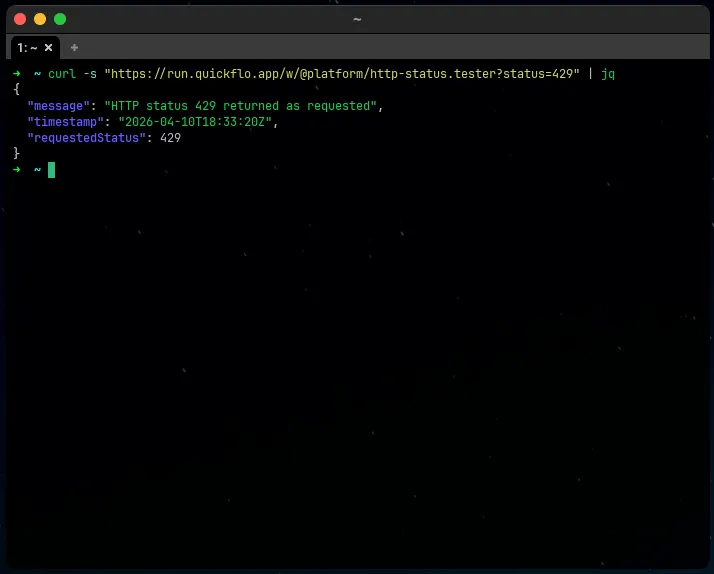
Each response will look something like this:
{
  "requestedStatus": 404,
  "message": "HTTP status 404 returned as requested",
  "timestamp": "2026-04-10T14:32:07Z"
}
The HTTP status code on the response itself will match whatever you requested.
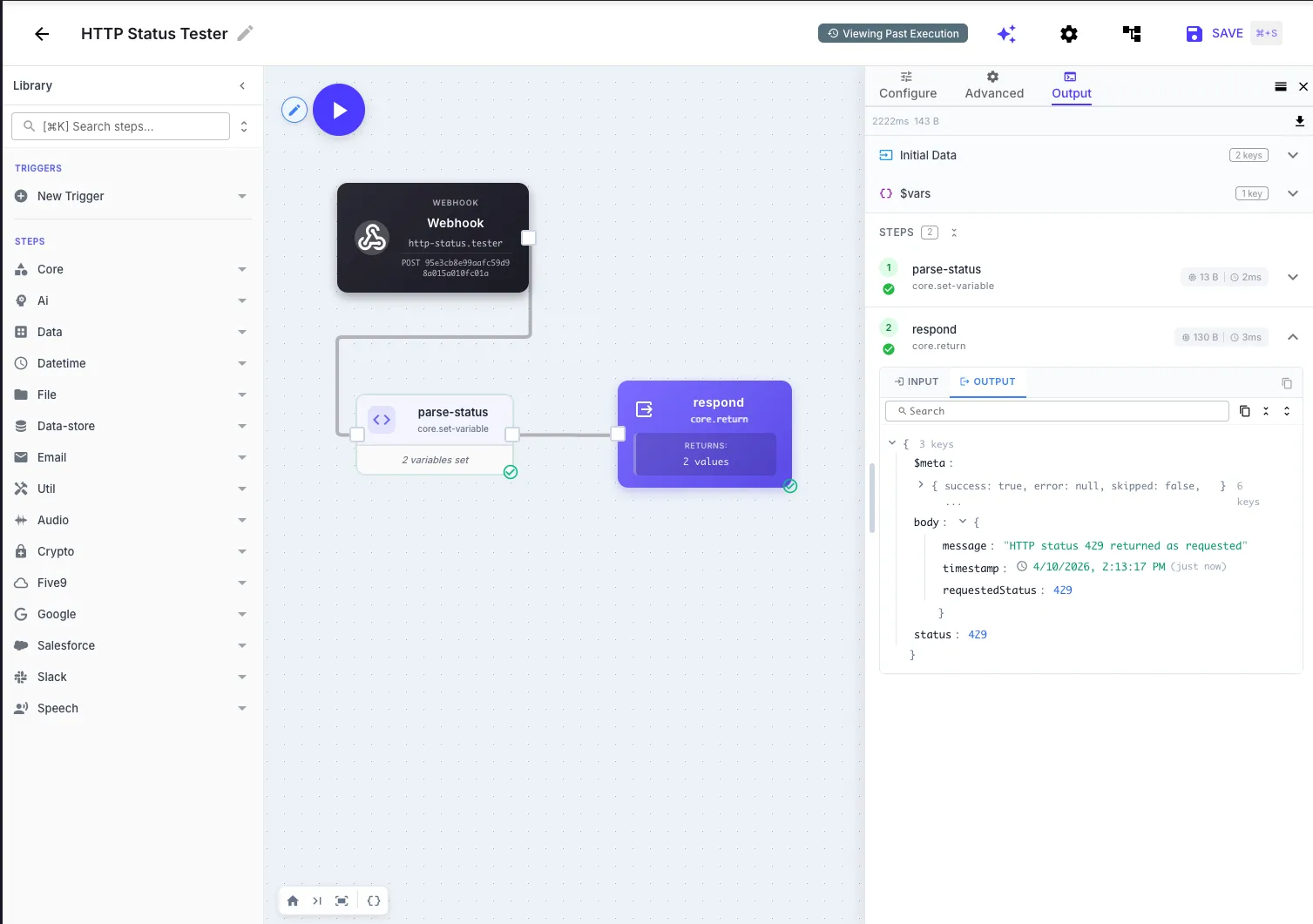
Testing from the canvas
You can also test directly from the QuickFlo canvas using the built-in execution panel. Click the play button, pass in your test parameters, and see the step-by-step output without leaving the browser.
What you could do next
This workflow is intentionally minimal, but it is a solid foundation you can extend:
- Log requests to a data store. Add a data store step before the return to record every request — status code, timestamp, source IP. Now you have a monitoring dashboard for your test traffic.
- Return custom bodies per status code. Use a conditional step to return realistic error payloads for specific codes. A 429 could include
Retry-Afterheaders. A 401 could return a proper OAuth error body. Turn it into a full mock server. - Add authentication. Restrict access so only your CI pipeline or test suite can hit the endpoint. QuickFlo supports API key and header-based auth on webhook triggers.
- Use it as a health check. Point your uptime monitor at the endpoint with
?status=200and get a fast, reliable synthetic check that your QuickFlo workflows are running.
Get started
This is a good first workflow because it is small, useful, and touches the core concepts — triggers, variables, templates, and the return step — that you will use in everything you build on QuickFlo.
Check out the getting started guide to set up your workspace, or browse the solutions page to see what else you can build.